


How do I change Pop3 email account settings in Microsoft Outlook Express?
Email support issues are one of the main areas where we help our clients on a daily basis.
Follow our quick guide below to change Pop3 email settings in Microsoft Outlook Express. If you run a business and are solving issues like these yourself then you should consider business IT support, we could save you hours of wasted time fixing technology problems so you can get on with doing what you do best.
1. Open Microsoft Outlook Express
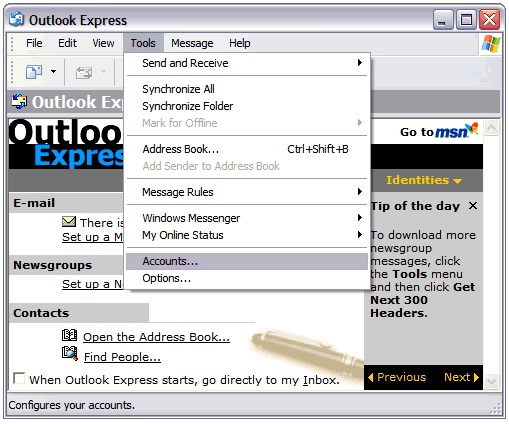
2. Click on Tools
3. Click on Accounts…
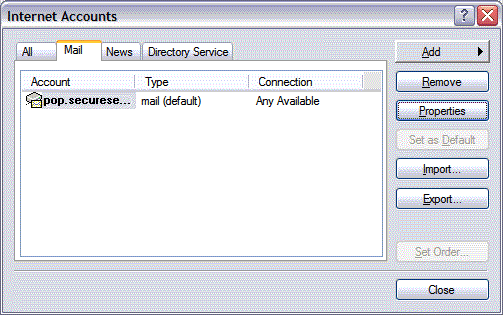
4. Click on your Email Address that you need to change the settings for
5. Click Properties on the right-hand side
6. Go to the Servers tab
7. In the “Incoming Mail Server” box, fill in the incoming server information that you have gathered from your email or ISP provider
8. In the “Outgoing Mail Server” box, fill in the outgoing server information that you have gathered from your email or ISP provider
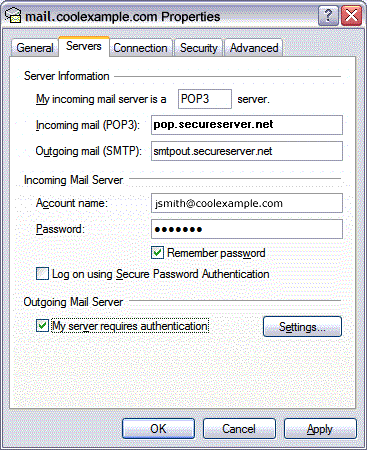
9. Click Apply and OK